Whether this is your first time to the burn or you've used dust before, in 2026 we've added quite a few new features to the app. So please take a look through this guide for the dust app for Burning Man 2026!
The map
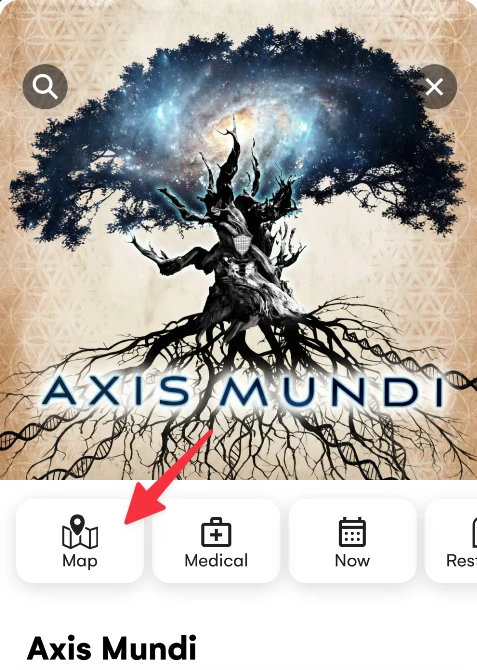
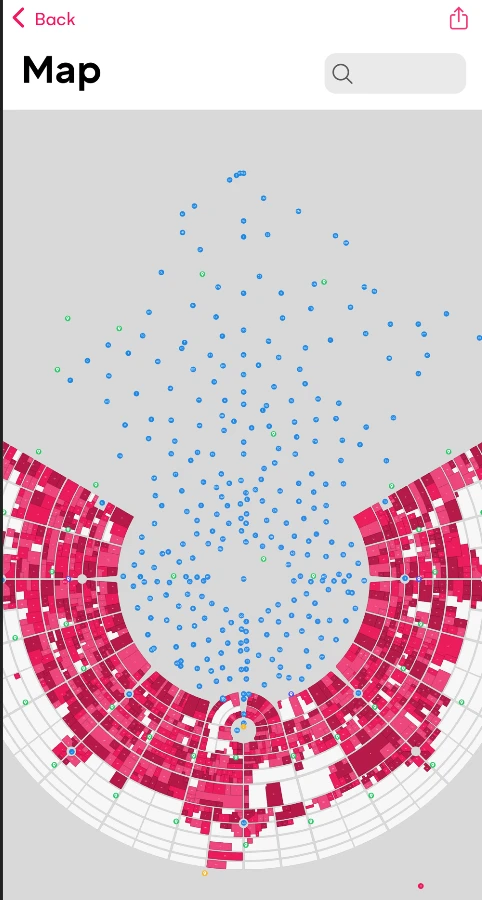
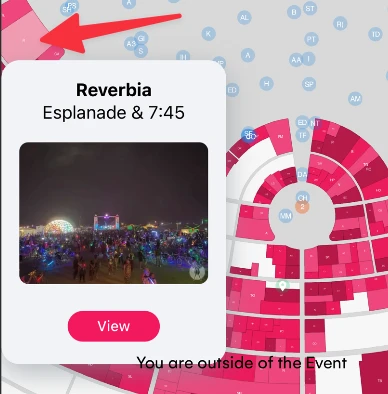
Camps, art, ice, medical and restrooms are visible on the map. Open the Home tab, tap the Map tile. Pan and zoom to see the full city. Tap to learn what is there. Camp boundaries appear in the app when gates open on August 30.
Camps
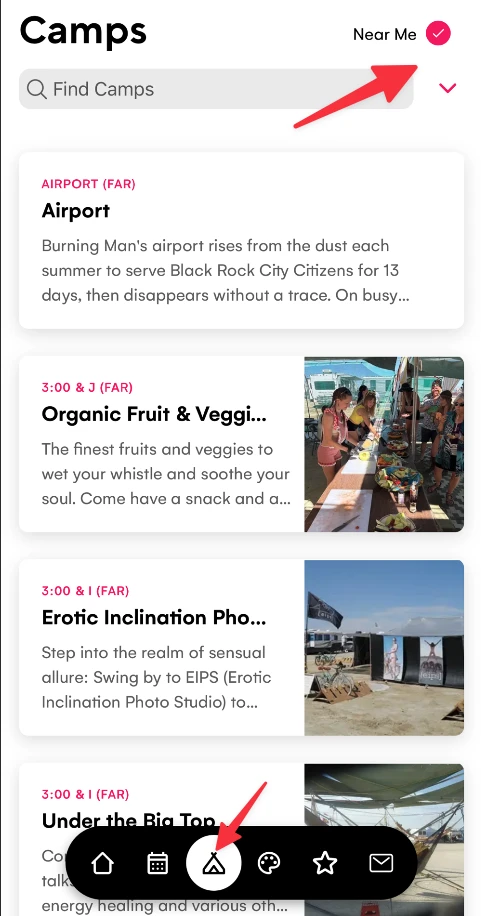
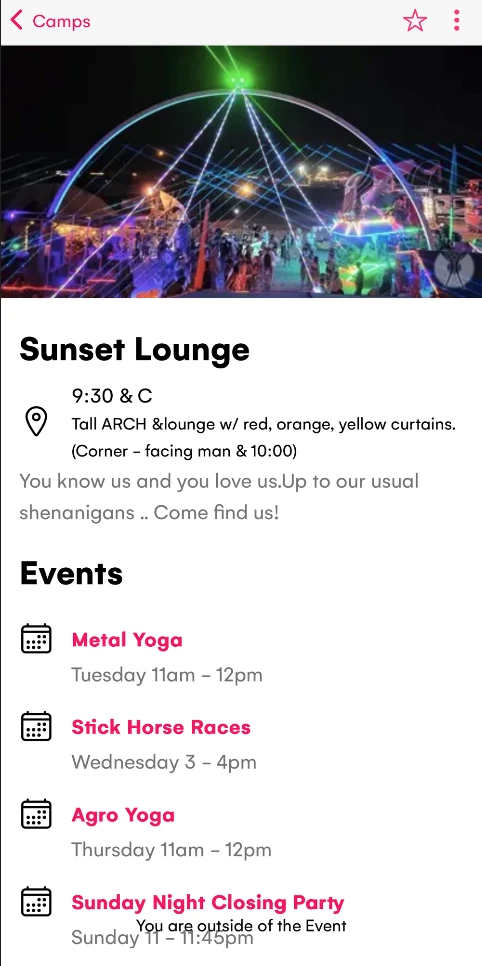
Use the Camps tab to search for a camp. Camp details include location info, events and parties. Press the Star on events to favorite and get a reminder of the event 30 minutes before it starts. The map shows the distance and direction to the camp from where you are.
Press "Near Me" to sort by the camps closest to you, press ⌄ and filter camps (eg for BRC Passport Camps)
Events
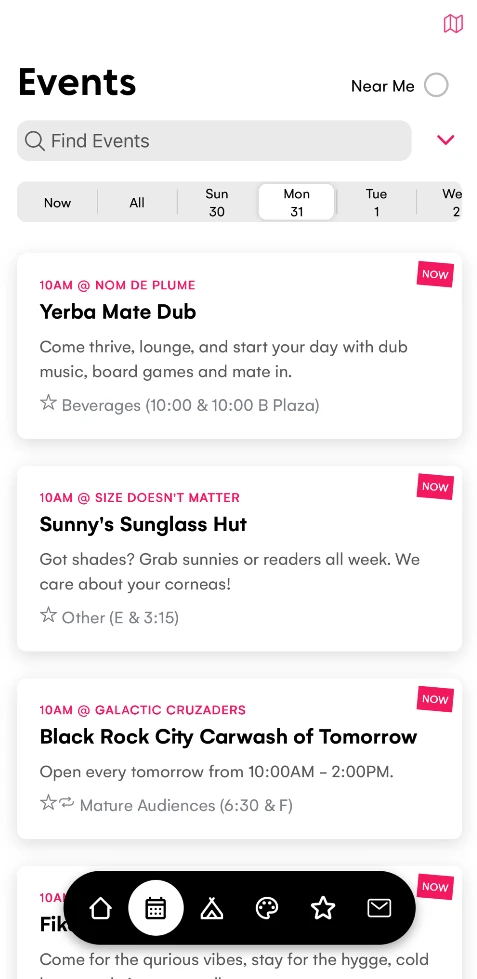
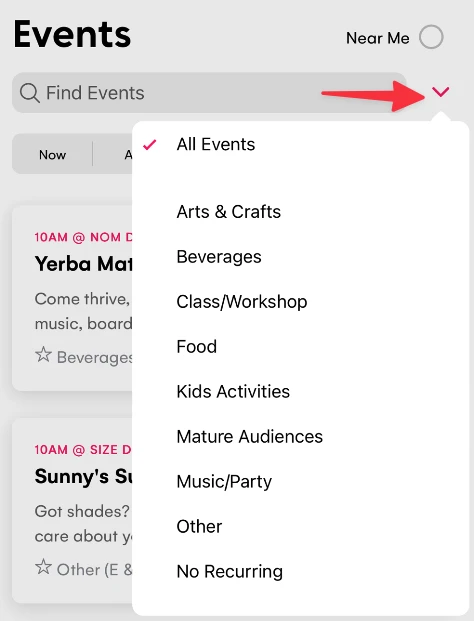
Tap the Events tab and pick a day in the day selector. Tap the Event Type ⌄ and choose a category (eg Food). Tap the map icon at the top right and the screen switches to a map of the events for that day and type.
Press the Star next to events to quickly Favorite the event and get a notification reminder 30 minutes before the event.
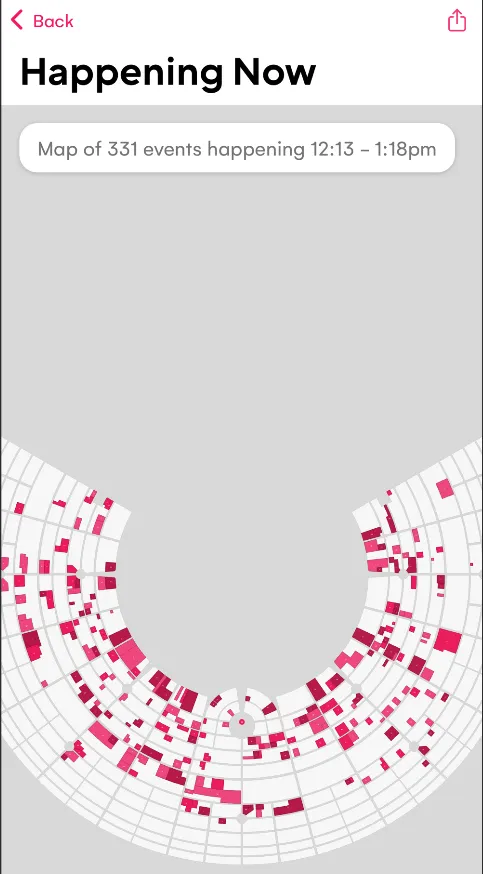
Use the "Now" tab to show events happening right now, and the "Near Me" option to show events that are happening close to you.


Art & Mutant Vehicles
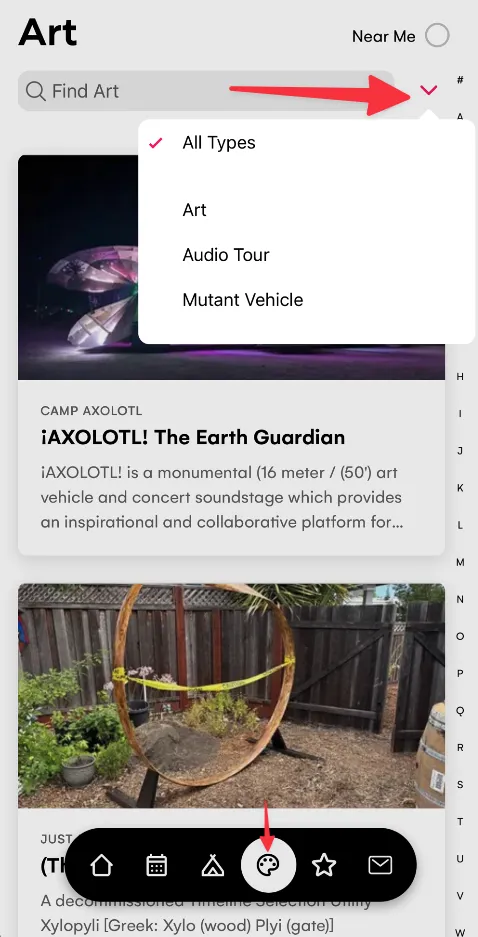
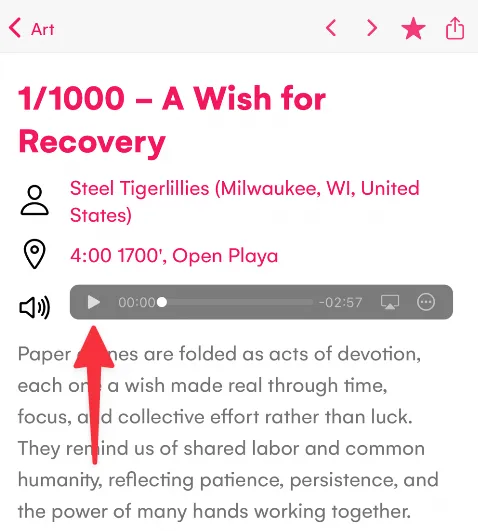
Tap the Art tab and type a name in Find Art. Tap ⌄ and choose "Audio Tour" to show all Art with audio - play and it will also auto play the next audio track (great for the ride to the burn). Also tap ⌄ to filter by Mutant Vehicles or Art.
For 2026 Mutant Vehicles also have a listing of parties with lineups coming from Rock Star Librarian.
Favorites
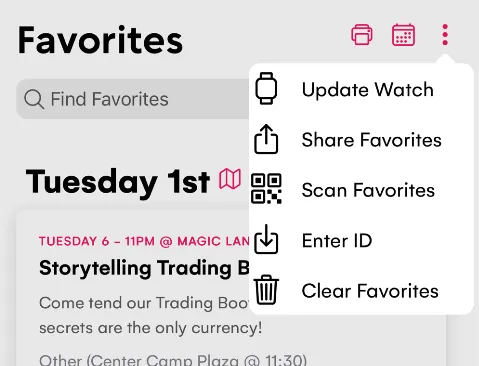
Tap the star on anything you like. It lands in the Favorites tab. To send it to a friend, tap the ⋮ three-dot menu, then Share Favorites. A modal opens with a six-character ID and QR Code. Tap the share icon at the top right to send it. You can also choose Scan Favorites and scan the QR Code from your friends phone to download their favorite Events, Camps & Art.
You can also print the list or sync it to your calendar from the Favorites header.
If you have an Apple Watch tap Update Watch to send your Favorite events, camps, art, restrooms, ice & medical to the watch - this way you can leave your phone at camp.
Ice and Restrooms
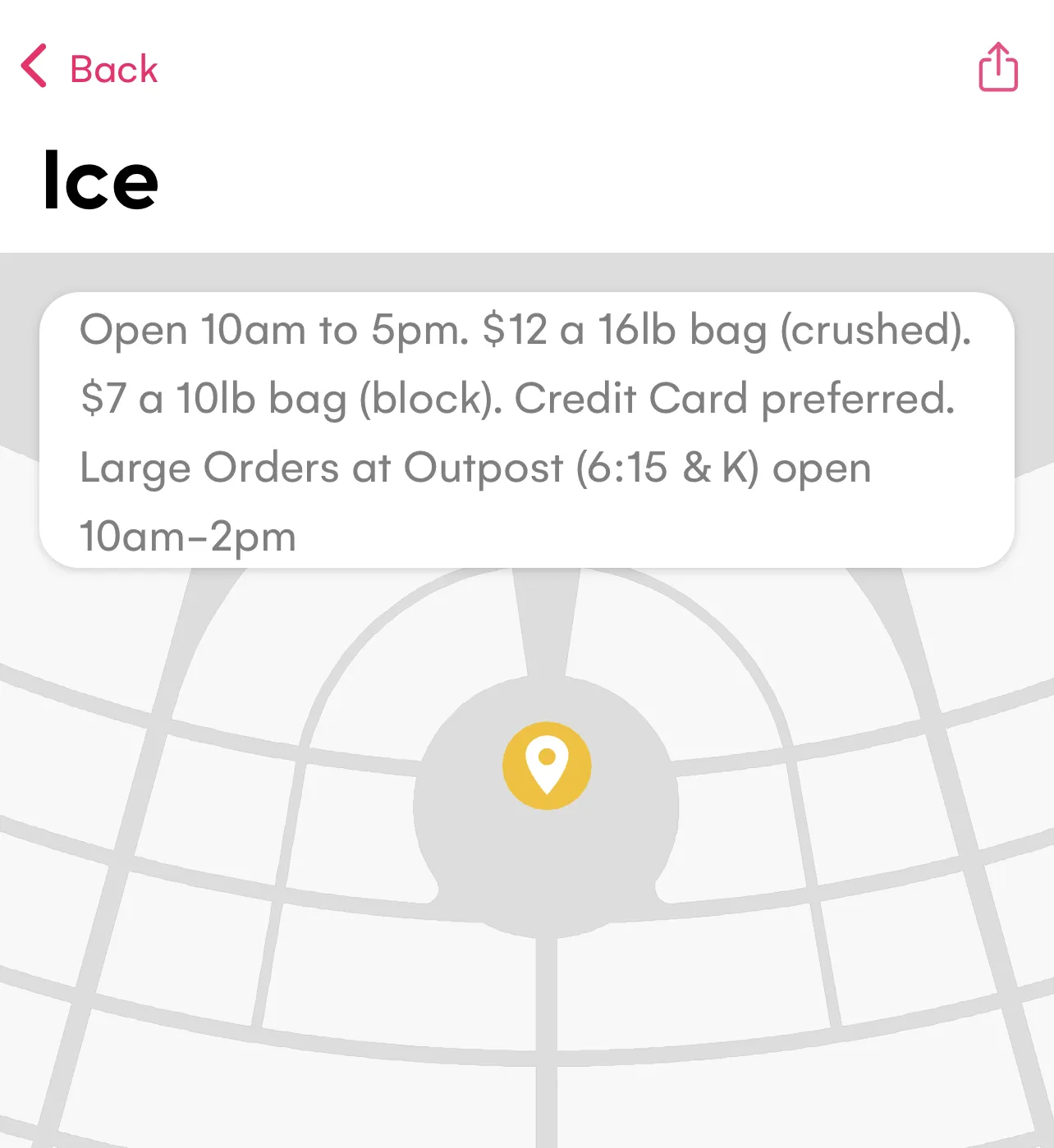
Tap the Restrooms tile on Home or the Ice tile. Each opens a map layer with its own pins and shows the nearest.
The Now button
Tap the Now button on the Home page to show a map of events happening in the next hour. Tap a camp or art to find out more. You can also tap Now in the Events tab to see events happening now.
Friends
You can save where everyone is. From a camp detail page, tap the menu, then Add Friend. The modal opens pre-filled with the camp address. Type a name and save. Or from Home, tap the + plus in the Friends card, use the address picker to set a street and time, type a name, and save.
Friends camps are also synced to the Apple Watch.

Where you parked your bike
Every bike on the playa looks the same, especially at big sound camps. When you park, open Home, scroll to the Find card, and tap My Bike. Dust asks for your location once, drops a pin at your GPS, and confirms it saved. Later you walk straight back to it.

Reminders for shifts and private parties
If you have a Volunteer shifts or invite-only parties you can Tap + plus on the Reminders card on Home. Type a title, set a time , add an address and notes, then save. The reminder appears in the list and exports with your calendar. You'll also get a notification beforehand.

Go offline
Before you leave home, open the Home tab, scroll to the Go Offline card, and tap the arrow. Dust downloads every image and audio file (these typically require cell service unlike events and text).
When you get to the burn toggle airplane mode - the app will start faster and use less battery.
Note: Cell service is needed to share favorites between friends, or to visit links.

Apple Watch Support
The new Apple Watch feature puts your favorites on your wrist (available in v2.137 released August 24th).
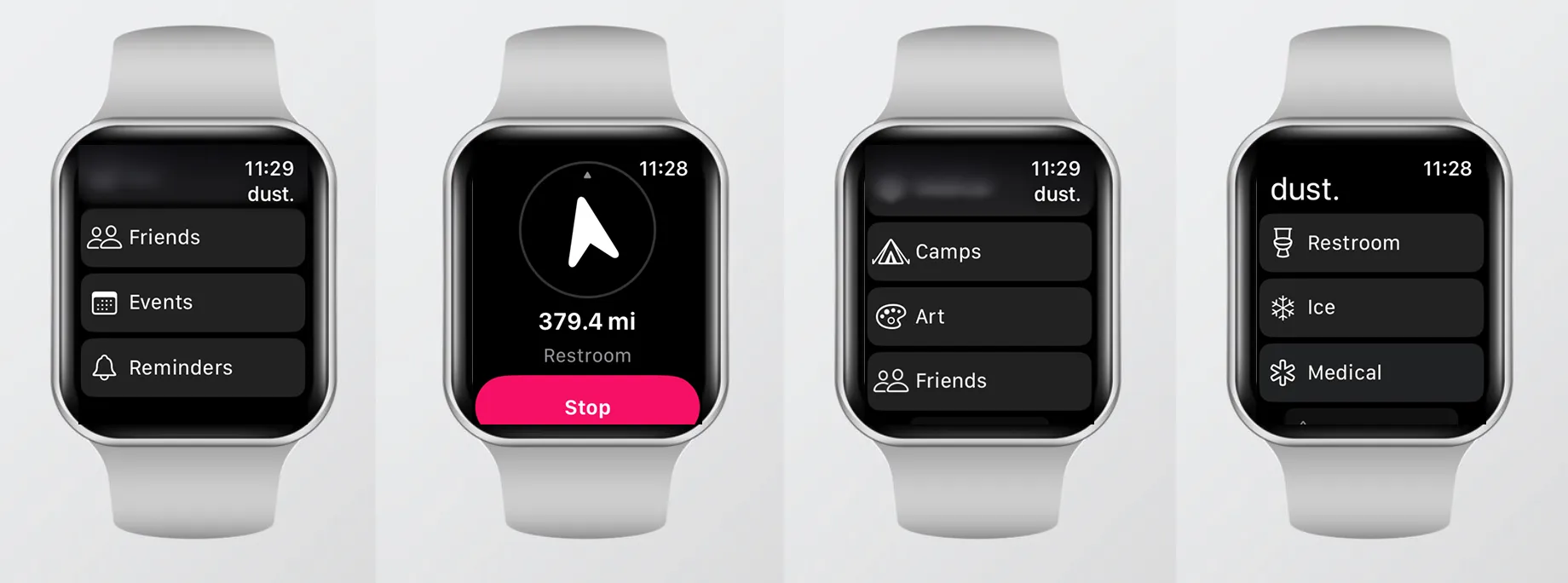
The iPhone app copies from your Favorites to a paired watch.
Set it up
- Open the
Favoritestab in the app on your iPhone. - Tap the
⋮three-dot menu. - Tap
Update Watch.
The app copies your Favorites (Events, Camps, Art) plus the Restrooms, Ice, and Medical points to the watch.
What the watch does
The watch runs on its own GPS, so it works even when your iPhone is back at camp. From the list it picks the nearest Restroom, Ice, or Medical point, plus your favorite camps, art, friends, upcoming events and parties, and reminders.
Walk to something
Tap a destination on the watch and a compass needle appears. The needle rotates so that up on the screen is the way to walk. It shows the live straight-line distance and the destination name. The distance counts down as you move. When you get within about fifteen meters it flashes You've arrived and gives a haptic. Stop returns you to the list.
Tips
Run Go Offline at home on your Wi-Fi. The download is big and you want it done before you leave. Use Airplane mode. The app runs faster and the battery goes further. Mark your bike when you park. Camps and art locations unlock on Sunday when the gates open. Until then you only get approximate points for camps.
Get the App
Download dust from dust.events. Regional burns also use dust. Fuck your burn!
